User guide
Shelfcloud puts cloud games into your Steam library. You pick games here on the website — from any device — and they appear on your Steam Deck as normal tiles with artwork. Launching one opens the provider and goes straight into the game.
What it does
Cloud games do not appear in your Steam library on their own. Shelfcloud puts them there, so a cloud game starts the same way as an installed one: from the tile, with the controller you already have in your hands.
| Service | What you need |
|---|---|
| Boosteroid | games you already own |
| GeForce NOW | games you already own |
| Xbox Cloud | the subscription is the catalogue |
| Amazon Luna | the subscription is the catalogue |
That distinction matters. Boosteroid and GeForce NOW stream games you already own. On Xbox Cloud and Amazon Luna the subscription is the catalogue — owning a game on Steam grants you nothing there — so both stay off until you switch them on under My Shelfcloud. That way a tile never opens a paywall you did not ask for.
Both also sell several plans with different games on each (Game Pass Essential, Premium or Ultimate; Luna with Prime or Luna Premium). Say which one you have and games above it are marked before you add them, rather than failing at the paywall afterwards.
Shelfcloud does not buy or subscribe to anything. You need whatever access each game already requires.
Installing the plugin
Shelfcloud is a Decky plugin, so the Deck needs Decky Loader first — if the Quick Access menu already has a plug icon, it is there. Shelfcloud is not in the official Decky store; it is published through AlphaStore, which you add once and which then lists the official plugins as well.
- Open Decky Loader's settings from the Quick Access menu — the plug icon, then the cog at the top of the panel.
-
Go to Store, set it to Custom, and enter:
https://alphastore.schelstraete.org - Open the store and search for Shelfcloud, then press Install. Everything from the official store is still listed alongside it, so this replaces nothing.
Updating later works the same way: the store shows a newer version when one is published, and installing it over the top keeps you signed in. Your shelves and settings live on the server, not in the plugin.
Getting started
With the plugin installed, the rest happens on the Deck once.
-
Open the Quick Access menu on your Deck (the
… button), go to the plugin tab, and choose
Shelfcloud.
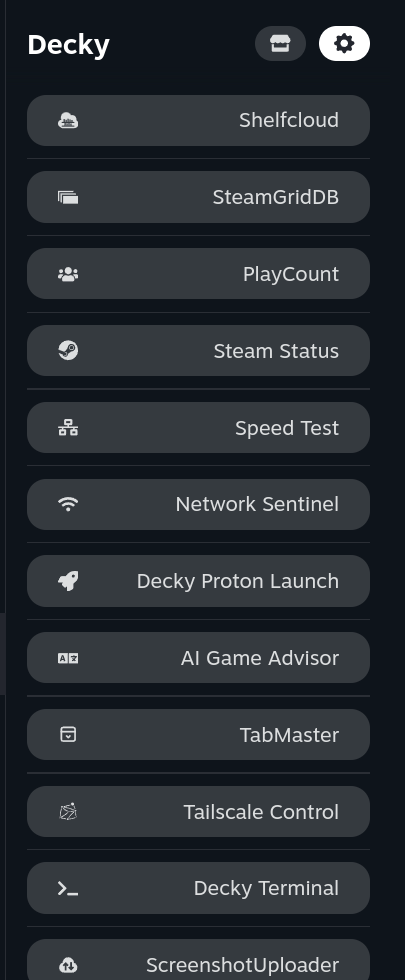
Shelfcloud sits in the Decky plugin list. - Press Sign in with Steam. Shelfcloud opens in Steam's browser; sign in there. The panel notices on its own — you do not need to come back and press anything.
- Choose a browser under Settings — Chrome or Edge. If neither is installed, the plugin offers to install one and sets up gamepad permissions for you. Firefox is not supported: cloud providers need video codecs and gamepad APIs that only Chromium browsers have.
- Pick some games on this website, then press Sync now in the panel.
Adding games
- Select games on Shelfcloud — opens the catalogue, where you can search and choose what appears on your Deck.
- Add all my games — reads which games you already own on Steam and adds every one that also runs on a cloud service you have. The number on the button is how many are waiting.
Shelves
A shelf is a named collection of games you create here on the website. Each device can be pointed at a different shelf, so you can tailor what appears on each machine.
- Shared library — the default. Every device sees these games.
- A shelf — only devices pointed at it see its games, plus the shared ones.
Pick which shelf a device uses under Settings › Shelf in the plugin. Create and manage the shelves themselves on the website.
With only one device you do not need shelves at all — the shared library is all you need.
Playing a game
Launch the tile like any Steam game. The browser opens and Shelfcloud presses Play for you.
The first time on each service you must sign in yourself. Shelfcloud never sees those credentials — the browser keeps them in its own profile, so it is a one-off per service, not per game.
If a page needs a click Shelfcloud did not make, hold the Steam button and use the right stick as a mouse.
Staying in sync
The plugin checks for changes on its own — how often is up to you under Sync every. Games you add here appear on the Deck without you doing anything, and a notification names them.
Remove a game here and its tile disappears at the next sync. Tiles you made yourself are never touched.
Settings
- Browser
- Which browser games play in.
- Shelf
- Which shelf this device syncs. "Shared games" is the default; choose a named shelf to get a different set of games on this device.
- Sync every
- How often to check for changes. More often is not better — every few minutes is plenty.
- Fix gamepad permissions
- Re-applies the flatpak sandbox overrides that let the browser see your controller. Done automatically at startup and after a browser install, but available here if something went wrong.
- Remove all games
- Deletes every tile Shelfcloud created. It asks twice. Your choices on the website are kept, so a sync brings them all back.
- Sign out
- Forgets this device's credential. Existing tiles stay, but stop updating.
If something is wrong
- Nothing appears after syncing
- Check that you are signed in — the panel says so at the top — and that you have actually selected games on the website.
- A game opens the wrong page, or asks you to log in
- Sign in to that provider once, in the browser Shelfcloud uses. The profile is kept, so it should only happen once per service.
- A tile does nothing
-
Every launch is logged, including why it did what it did:
~/homebrew/logs/shelfcloud-launch.log - The controller does not work in the stream
- First try Settings › Fix gamepad permissions, which grants the browser access to input devices inside its flatpak sandbox. If the controller still does nothing and you have an external controller connected alongside the Deck's own controls, open the Quick Access menu during the game and use Reorder controllers. Steam can leave the first controller slot empty, and cloud players read that slot — this is a Steam behaviour, not something the plugin can set for you.
- "Could not reach the gateway"
- The Shelfcloud server is asleep or off the network. Games still start from their last known link, so this is rarely fatal.
What is recorded
When you launch a game the server notes which game, when, and which service — so the catalogue can show what people actually play, and so your link can be refreshed if a provider changes it.
It does not record what you browse, and it never stores your provider passwords: those stay in your browser and are never sent anywhere by this plugin. The full detail is in the privacy notice.
Screenshots taken on a Steam Deck running SteamOS.